Actpay Timesheet Report
ActpayTime is a desktop software designed to generate attendance and payroll reports based on Excel and Text format time sheets. A comprehensive set of reports and visual grids provide flexible and accurate attendance reports. As well as attendance information it can also handle multiple shift types and holidays.
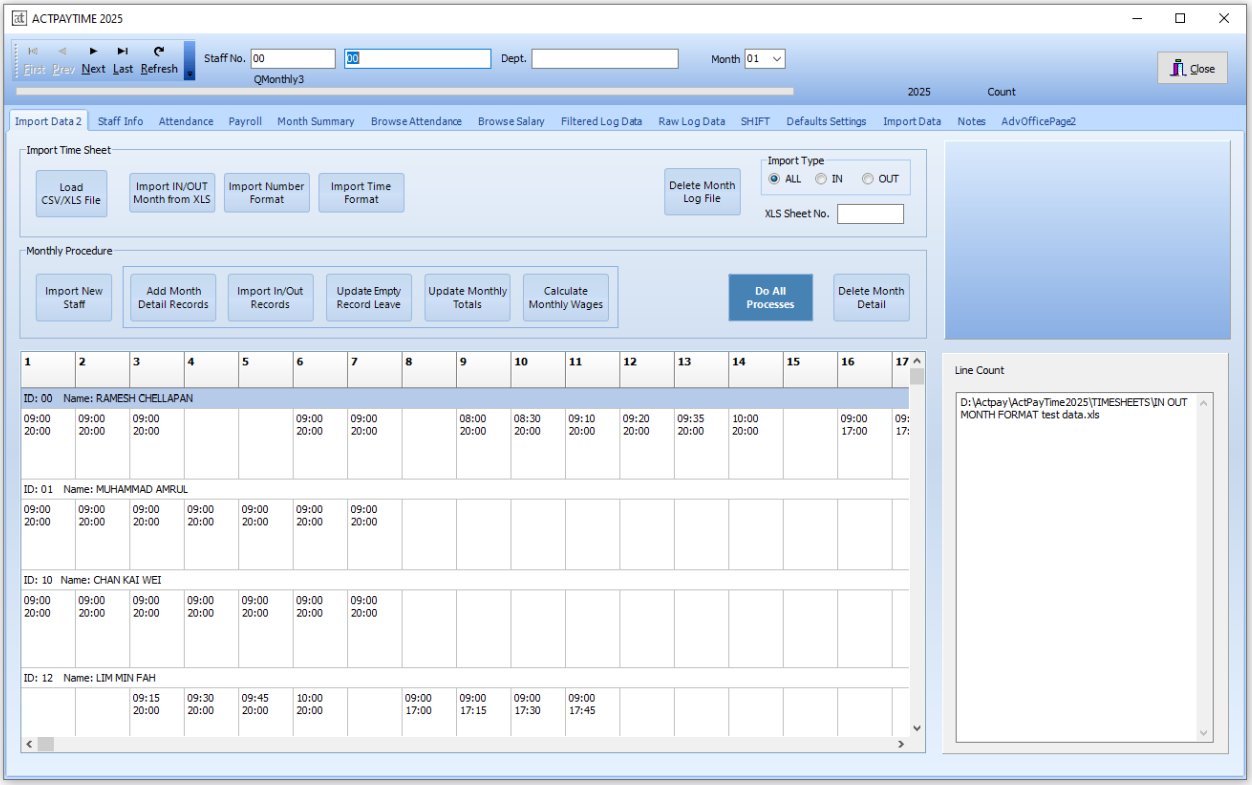
Actime supports multiple time attendance formats. The most popular format is the following :
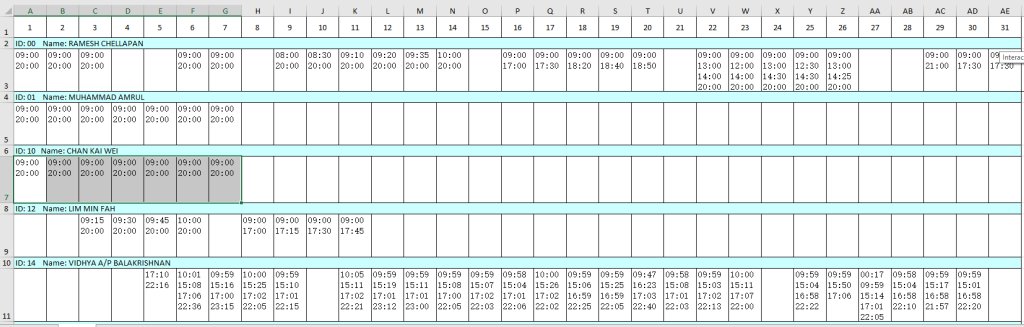
This format is found in almost all stand alone fingerprint and card readers.
Importing Data
Click load file to open data in the Grid.

Import Type will be used to choose if data contains both IN and OUT data in one file or just IN or OUT. This allows data to be imported from multiple input devices. Default is IN and OUT.
In some files, this data is found in the 2nd or other XLS sheet. Input as required.
The data is has now been imported into the database. From now all data processing is done in the database.

Click Import Staff to add new staff from the attendance data.
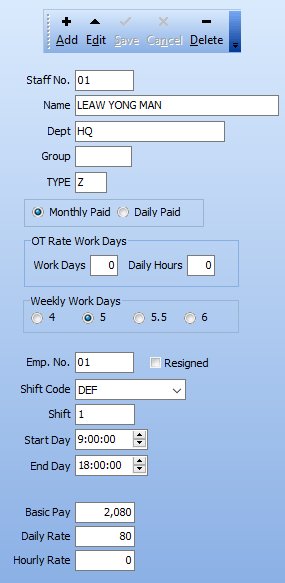
Staff No. and named is imported from the attendance data.
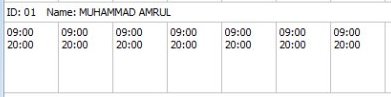
All data except “Staff No” (ID:01) can be edited as needed.
There is a field “Emp. No” that can be used to connect with the Staff No. used in your Payroll software. By default Emp. No. is same as Staff No.
Process Attendance Data

There are 5 steps for full processing.
- Add Month Detail Records
This procedure creates the data records for all staff who came to work. - Import In/Out Records
The data is processed to calculate time in the office, overtime, lateness etc. - Update Empty Record Leave.
The function will tag all absent days as Annual paid leave. The leave type can be edited as Absent, Medical Leave etc. - Update Monthly Totals
This will monthly totals for late, overtime, present etc. - Calculate Monthly Wages
This procedure will calculate the monthly wages based on the attendance. This data can then be exported to Actpay Payroll for further processing.
Step 1 – Generate attendance sheet of all working staff.
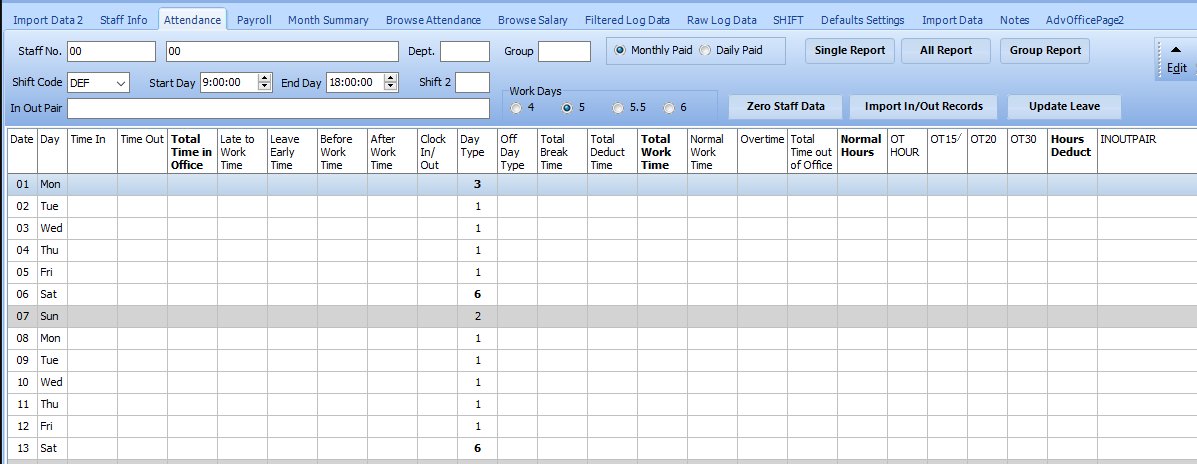
Note: It also sets Holiday information. Day Type = ‘3’ is holiday. Further sets Rest Day = ‘2’ and Saturday = ‘6’. These values are needed to calculate overtime for 5 day week or 6 day week.

Step 2 – Process time data.
The processed data can be viewed in the Attendance Screen. This shows various attendance related parameters like, early, late, off day etc.
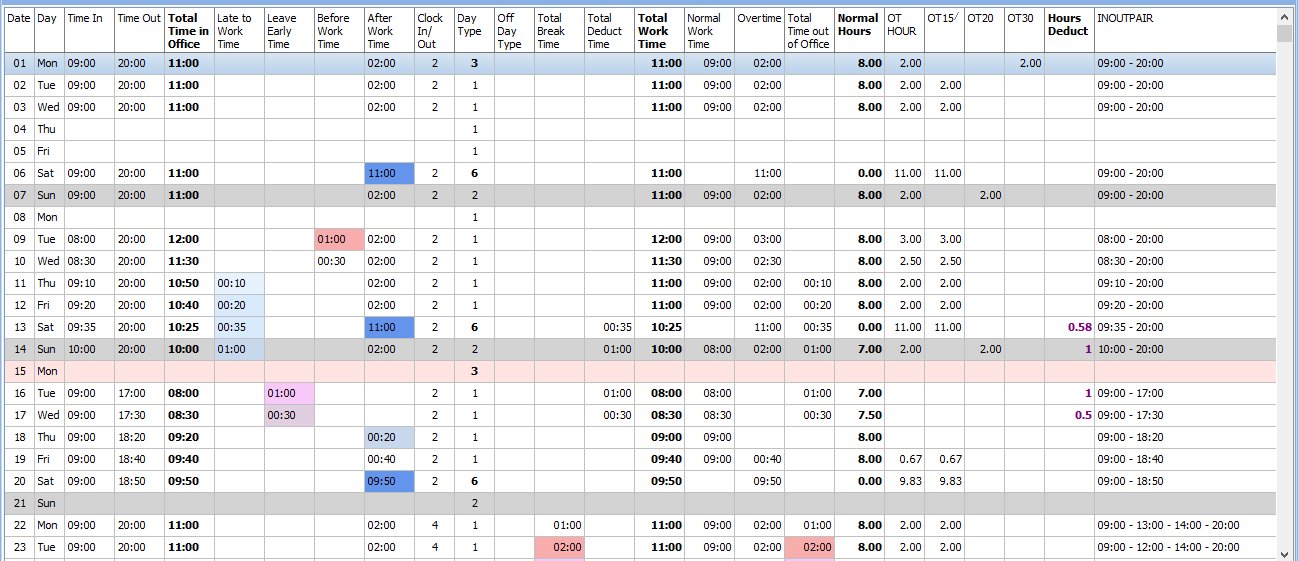
Explanation of Columns
| Date | Day of Month. | |
| Day | Week Day. | |
| Time In | First Time clocked in. | |
| Time Out | Last Time clocked out. | |
| Total Time in Office | Total time between clock in and clock out. | |
| Late to Work Time | Time late to work. Color will get darker depending on lateness. Default lateness to track can be set. | |
| Leave Early Time | Time left work early. Color will get darker depending on how early. Default early time to track can be set. | |
| Before Work Time | Time in office before work hours. | |
| After Work Time | Time in office after work hours. | |
| Clock In/ Out | How many time in the day staff clocked in and out of the office. | |
| Day Type | Shows normal day, holiday, rest day and Saturday (6th day). | |
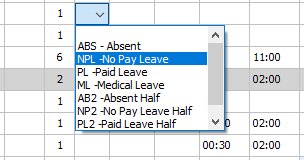
| Off Day Type | Type of day not in office.
ABS – Absent |
|
| Total Break Time | Total time out of office after clocking in. | |
| Total Deduct Time | Total time to deduct from pay for lateness or leave early. | |
| Total Work Time | Total paid work hours. | |
| Normal Work Time | Number of hours in the work day. | |
| Overtime | Number of overtime hours. | |
| Total Time out of Office | Total time spent out of the office during work hours. | |
| Normal Hours | Normal work day hours in decimals. | |
| OT HOUR | Overtime hours in decimals. | |
| OT15 | Normal day Overtime hours at 1.5 rate. | |
| OT20 | Rest day Overtime hours at 2.0 rate. | |
| OT30 | Holiday Overtime hours at 3.0 rate. | |
| Hours Deduct | Hours to deduct from salary. | |
| INOUTPAIR | Clock in and clock out times for the day. |
Step 3 – Days with no Attendance

This optional procedure with set all days with no records as Annual Leave. “Off Day Type” is set to Paid Leave (PL). This can
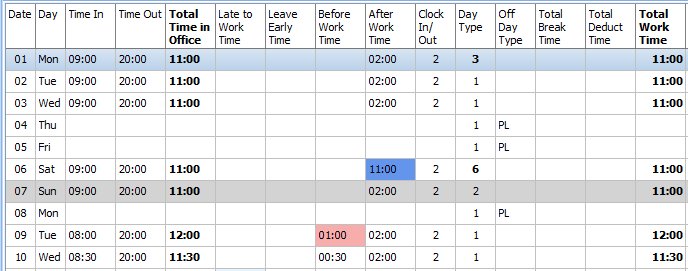
The Off Day leave type can be edited as needed.
Step 4 – Update Monthly Totals
This will accumulate daily data to monthly total for the whole month. This data can then be used to frequency of late attendance and other information.

This produces detailed data by month for each staff.
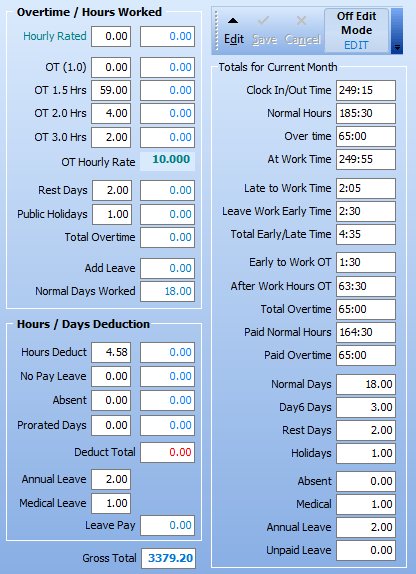
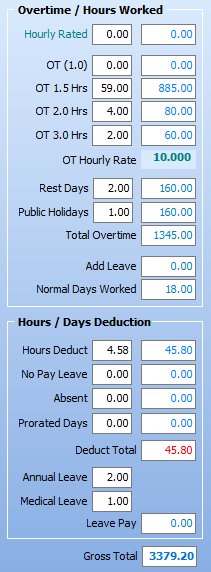
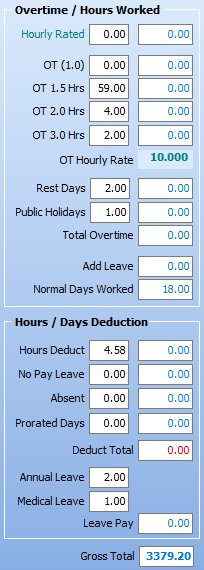
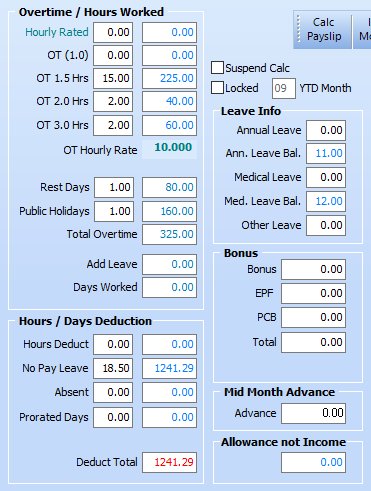
Also data that corresponds with that found in Actpay Payroll. This data can be exported and imported to Actpay Payroll for salary calculations and reports.
| TimeSheet View | Actpay Payroll view |
 |
 |
Step 5 – Calculate Monthly Wages
This final function will calculate the monthly wages based on attendance.